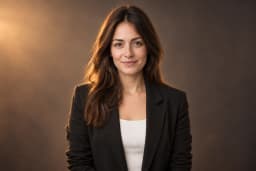
01Upload or Describe the Change
Sign in and attach a clear PNG or JPEG. Say what should change and what should stay. To edit a photo with AI using your own reference, start with a well-lit image rather than a blurry screenshot.
PhotoAgent
A Chat Photo Editor One Conversation, Every Edit
Edit photos with AI in a conversation that keeps your image and instructions together. Upload a portrait, product shot, or everyday photo, describe a change, and review the result. PhotoAgent lets you adjust the setting, lighting, and details without learning a layer-based editor.
 Edit by Chat
 Portrait Retouch
 Replace Backgrounds
 Refine Details
Preparing your workspace
Upload a photo, tell the agent what to change, and keep refining the same image. Specify the face or product details that should stay.
Example conversation
“Retouch my portrait. Keep my face and natural skin texture.”
“Replace the background with a warm gray studio backdrop.”
Upload a reference, describe the result, and refine it in the same conversation.
Sign in and attach a clear PNG or JPEG. Say what should change and what should stay. To edit a photo with AI using your own reference, start with a well-lit image rather than a blurry screenshot.
Submit your request and review the generated image. Check faces, edges, text, and shadows at full size. Each image generation or edit uses credits, so a focused first request helps you make useful progress.
Follow up with “Make the light softer” or “Keep that background, but restore the original jacket.” The conversation keeps your images available, so you can continue without uploading the same reference again.
A chat photo editor turns an everyday request into an image edit. Instead of building masks and adjustment layers, describe the outcome: a cleaner backdrop, warmer light, or less distracting furniture. When you edit photos with AI, change one thing at a time to see which instruction made the difference.
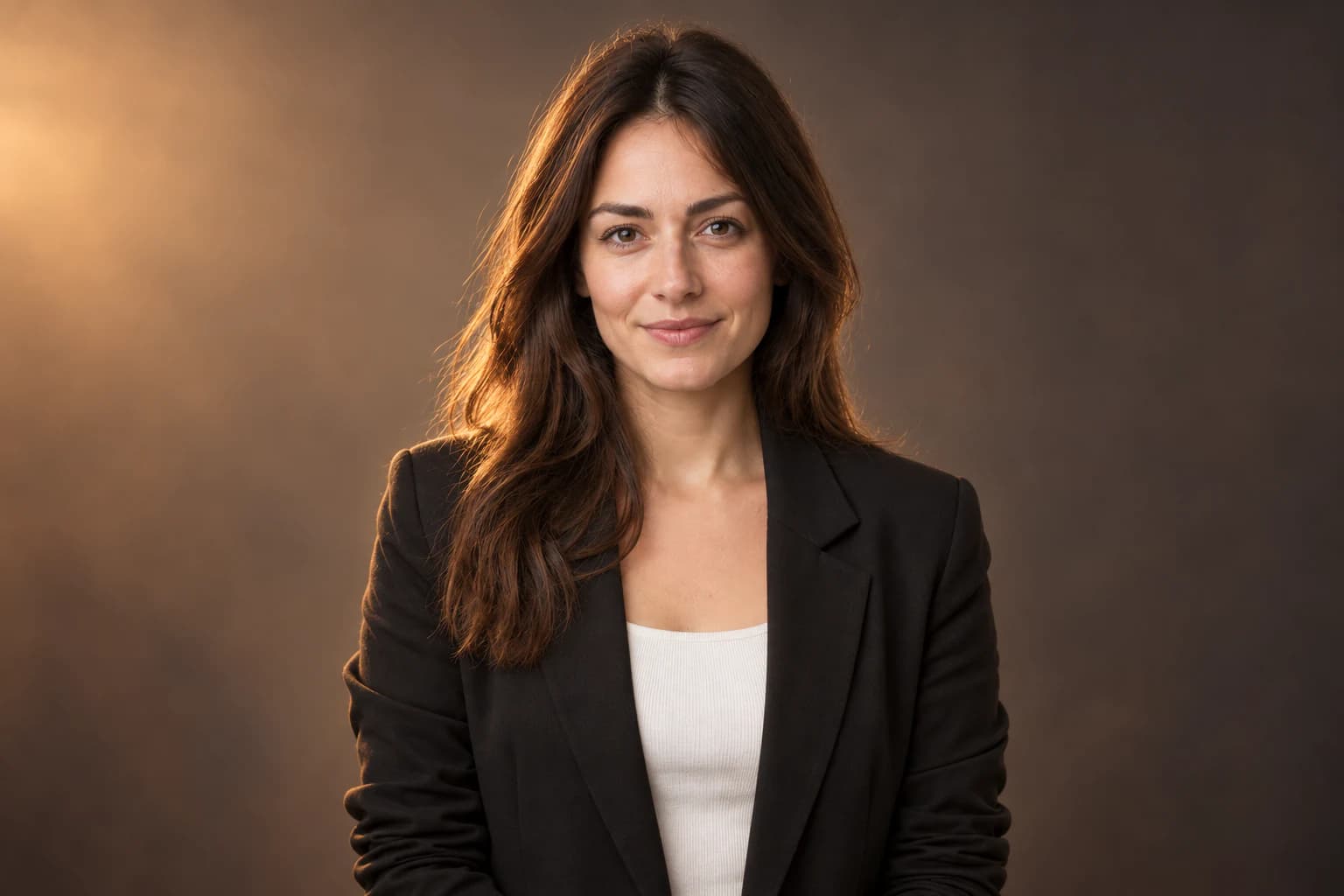
Ask to keep the same face, expression, and recognizable features while changing clothing or light. Use the original portrait as a reference and check likeness after each edit; identity preservation is a goal, not a guarantee.
Specify the shape, label, logo, material, and color that must remain unchanged. Compare the result with your source before publishing, especially small lettering and reflective surfaces.
Select an earlier image in the conversation when a new direction does not work. Continue editing from that version instead of rebuilding the scene from a fresh upload.

Edit photos with AI to try a studio backdrop, a quieter room, or an outdoor setting from one source photo. Describe the light direction and the shadow beneath the subject so the new scene feels coherent. Review hair, glass, and fine edges; a transparent background is not guaranteed.
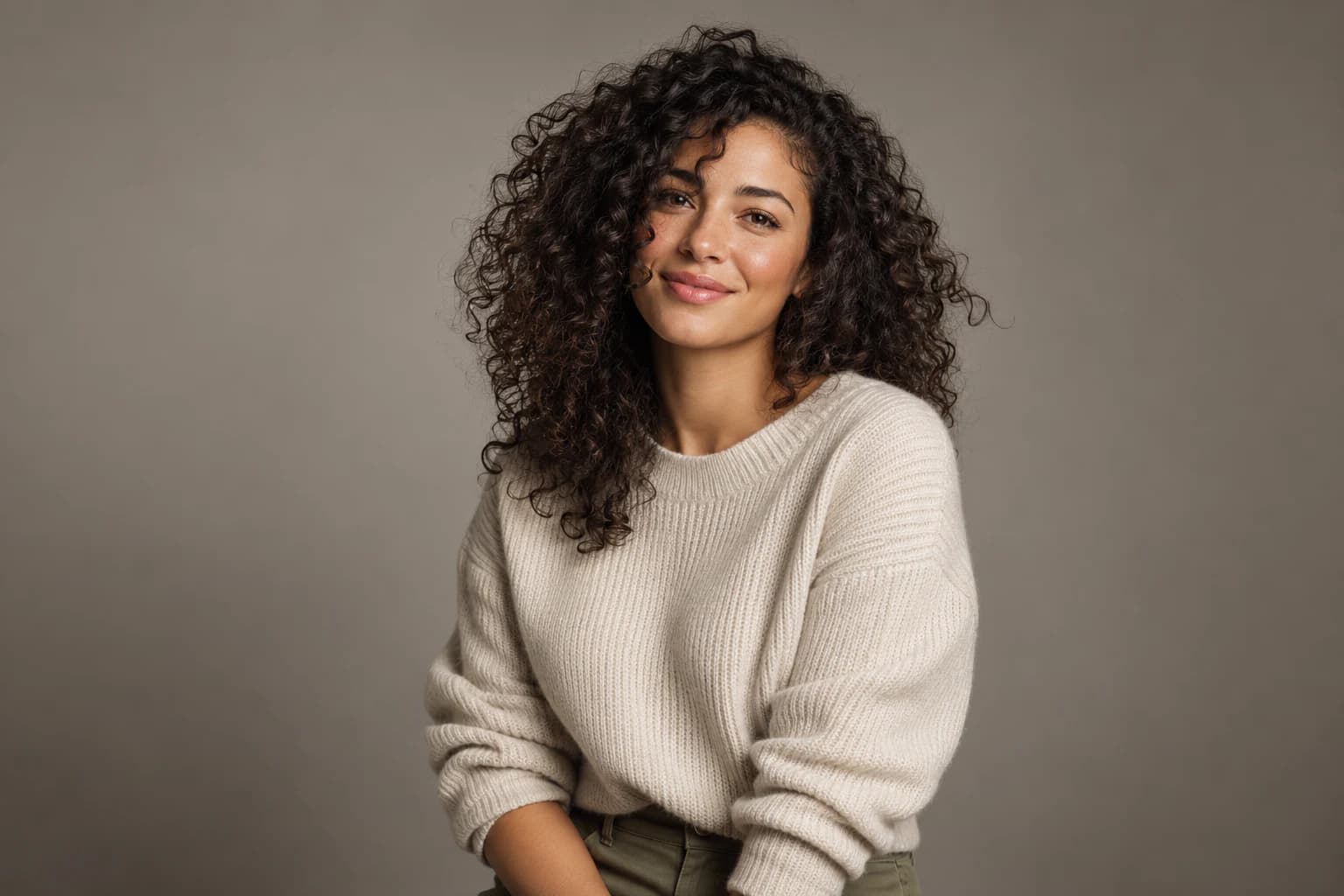
A useful AI photo editor prompt names the change, the constraints, and the finish. Try: “Replace the background with warm gray. Keep my face, hair, and pose unchanged. Use soft window light and natural skin texture.” To edit an image with AI, avoid several conflicting styles in the same request.
For an AI photo retouch, ask for subtle corrections: “Reduce shine and soften under-eye shadows; retain freckles and skin texture.” If you edit photos with AI regularly, save requests that work and adapt the background or lighting for your next image.
Refine profile photos with balanced light, a simpler background, or a different outfit. Keep facial detail natural.
Explore surfaces and studio settings for your catalog. Check proportions and packaging against the original.
Try wardrobe colors, locations, and editorial lighting. Review fabric texture and how clothing fits.
Adjust a room’s mood or a scene’s time of day. Check straight lines, furniture, and perspective.

PhotoAgent keeps requests, references, and versions in one workspace. Traditional retouching takes manual selection and editing time; a new location may also require another shoot. Here, you can edit photos with AI and explore alternatives with credit-based edits. Precise finishing may still need manual work, but testing an idea does not require booking a studio.
Try the workflow with starter credits, then choose a plan for ongoing edits. Each generated or edited image uses credits.
Credits are used for each generated or edited image. The amount depends on the operation and configured image quality. Continue refining a result one image at a time.
Billed annually: $95.90 (20% off)
For trying photo ideas and making occasional edits
Billed annually: $191.90 (20% off)
For creators who generate and edit photos regularly
Billed annually: $383.90 (20% off)
For frequent photo creation and larger creative projects
Photo uploads, faces, background editing, and credits.
New accounts receive starter credits without a paid plan. Image generation and editing use credits; see Pricing for current allowances and subscriptions.
Use a clear reference and ask to preserve the same person. Review each result for likeness, since AI can change facial details.
No. PhotoAgent works in your browser. Sign in to upload a photo and continue editing in the chat workspace.
Yes. Select an earlier image in your conversation and use it as the starting point for your next request.
Yes, you can request this with a product reference. Specify what must stay unchanged and check labels, logos, and edges before use.
Start from an idea with the AI photo generator, or explore a focused workflow below.
Explore studio backgrounds, lifestyle scenes, and a workflow for checking product details. AI Product Photography.
Upload a photo and describe the change. Keep the details you like, then refine the rest.
Start Creating Free