
01Upload Your Product
Sign in and attach a sharp PNG or JPEG with the whole product visible. A simple background and readable label give the AI a clearer reference. Avoid a source where fingers, packaging, or shadows hide important details.
PhotoAgent
Studio & Lifestyle Shots From One Product Reference
AI product photography helps you explore new settings from a product reference. Upload your image, describe the background and light, and review the result in PhotoAgent. Create a clean catalog direction or a lifestyle scene, then refine it through chat without arranging a new shoot for every idea.
 Product References
 Studio Shots
 Lifestyle Scenes
 Ad Variations
Preparing your workspace
Upload a product reference and describe a studio or lifestyle setting. Ask to preserve the label, materials, and proportions, then review each result.
Example conversation
“Place my product on a white background with a soft contact shadow.”
“Create a lifestyle scene for my product. Keep its shape and label.”
Upload a reference, describe the result, and refine it in the same conversation.
Sign in and attach a sharp PNG or JPEG with the whole product visible. A simple background and readable label give the AI a clearer reference. Avoid a source where fingers, packaging, or shadows hide important details.
Describe a white backdrop, a kitchen counter, or a studio surface. Name the camera angle and lighting. Add constraints such as “Keep the bottle shape, gold cap, logo, and amber color unchanged.”
Review the first image, then request another setting or a focused adjustment in the same chat. PhotoAgent creates one image at a time. Each generation or edit uses credits, so approve the product details before exploring more scenes.
The setting can change; your product specification should not. In AI product photography, tell the agent to preserve label wording, logo placement, material, color, and proportions. Keep the original reference in the conversation rather than relying only on a previously generated image.
Inspect the output beside your source at full size. Small lettering, seams, reflective glass, and subtle color differences need particular attention. If a detail changes, request a correction from the original reference. AI does not guarantee exact reproduction; use verified source photography where a listing requires precise evidence of the item.
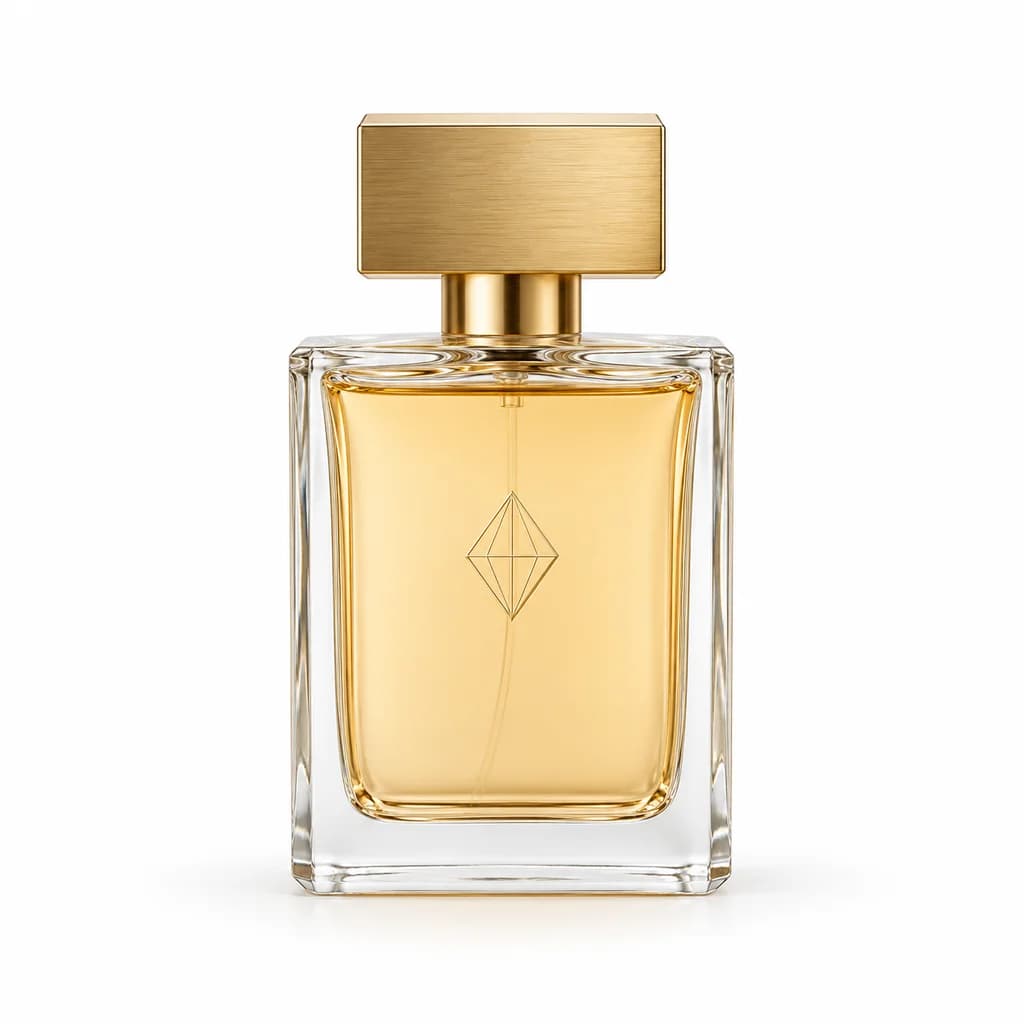
Ask for an evenly lit white backdrop with a soft contact shadow. Ecommerce product photos should make the item easy to inspect. Check your marketplace’s current image requirements before uploading a generated result.
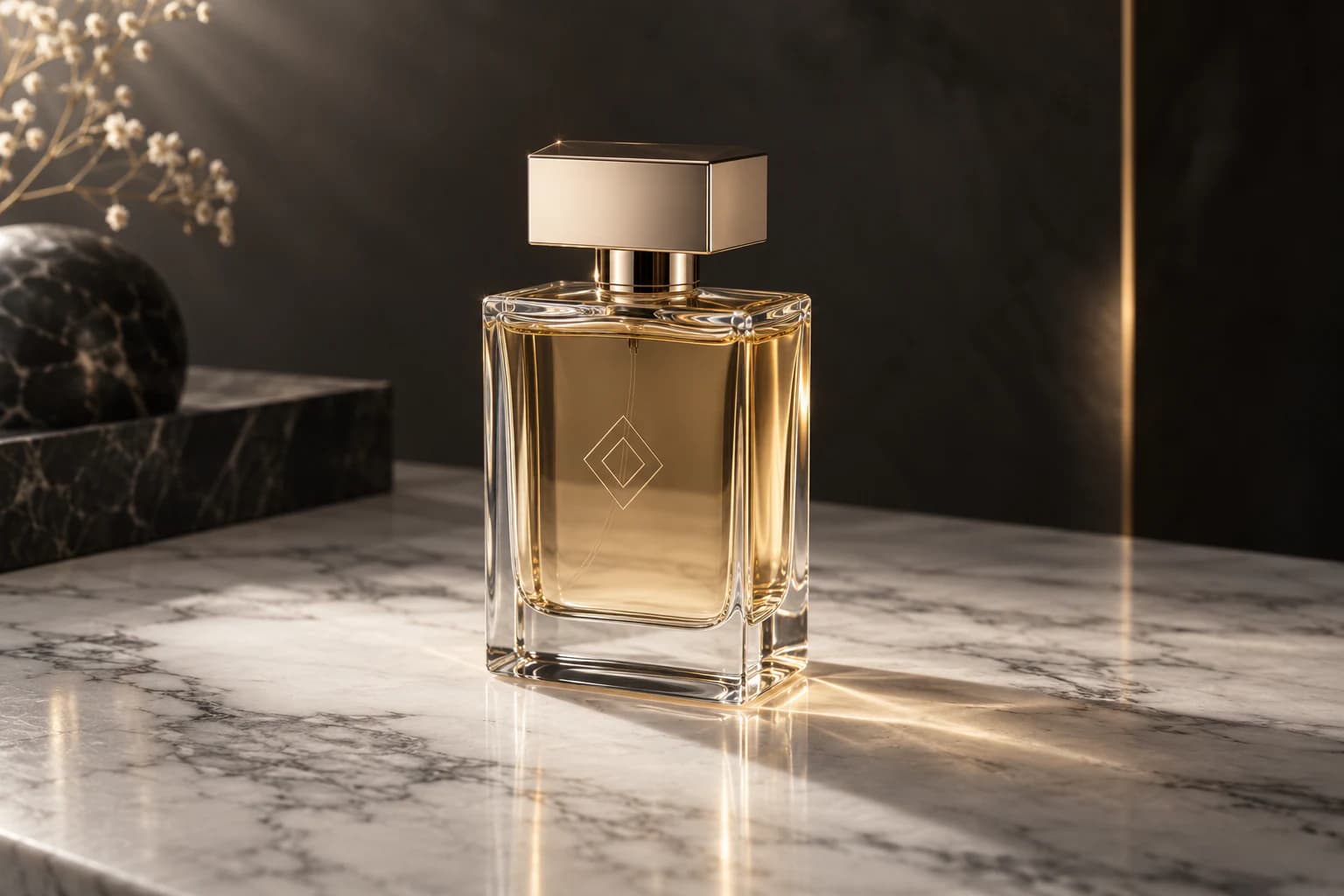
Create lifestyle product photos around a specific use: a candle on a bedside table or skincare on a bathroom shelf. For model scenes, check the product’s scale, hands, and contact points. Do not imply a real endorsement.
Request room for campaign text, a brand-colored surface, or a wider composition for social posts. Keep promotional copy outside the generated product label and review the final crop at its intended display size.

Use AI product photography to explore concepts before committing to a physical setup. A traditional shoot gives you direct control over the real item, optics, and lighting. Which approach fits depends on how much exact detail the image must show.
| Consideration | PhotoAgent | Traditional shoot |
|---|---|---|
| Cost | Subscription or available credits; each image uses credits | Photographer, equipment, location, and retouching costs |
| Time | Generate and review in the browser; allow time for corrections | Schedule, prepare, shoot, and retouch |
| Revisions | Request another edit; each generated revision uses credits | Retouch existing shots or arrange a reshoot |
| Models & studio | Explore generated scenes without booking either | Arrange models and a studio when the concept needs them |

Explore AI product photos for supporting listing images and seasonal scenes. Retain accurate source shots to show buyers what they will receive.
Give a small collection a consistent visual direction. Reuse lighting and backdrop instructions, while checking each item’s unique details individually.
Test campaign concepts without staging every background. AI product photography can support early creative decisions; review approved images before they reach customers.
Explore settings with starter credits, then choose a plan for your catalog or campaigns. Each image and generated revision uses credits.
Credits are used for each generated or edited image. The amount depends on the operation and configured image quality. Continue refining a result one image at a time.
Billed annually: $95.90 (20% off)
For trying photo ideas and making occasional edits
Billed annually: $191.90 (20% off)
For creators who generate and edit photos regularly
Billed annually: $383.90 (20% off)
For frequent photo creation and larger creative projects
Product references, accurate details, variations, and credits.
You can request preservation, but exact text and logos are not guaranteed. Check every result against the original before using it in a listing.
Use a clear, well-lit PNG or JPEG showing the entire item. Make sure labels, texture, and edges are visible and unobstructed.
The workspace creates one image per generation. Request additional variations in the conversation; each generated image uses credits.
New accounts receive starter credits. You can try the workflow before subscribing; see Pricing for the current allowance and paid plans.
No app installation or studio booking is needed to explore scenes. Use PhotoAgent in your browser with your own product reference.
Start from an idea with the AI photo generator, or explore a focused workflow below.
Learn how to refine backgrounds, lighting, and subject details in the same conversation. Edit Photos With AI.
Bring your product reference and describe the setting. Review the details, then explore another version.
Start Creating Free